Parameters
1. Overview
This document provides an outline for configuring the Centrify 360 to cater for parameters in the target Power BI model.
Centrify 360 supports adding parameters in the target star schema model, allowing the user to define parameters in both types:
-
Fields Parameter: A list of fields to be used in a slicer for dynamics views
-
Numeric Range Parameter: A numeric range to be used in a slicer
Refer to https://learn.microsoft.com/en-us/power-bi/transform-model/desktop-what-if for more info about data model parameters.
2. Configuration Steps
-
Navigate to Centrify 360 Setup page and press on Setup Parameters button

-
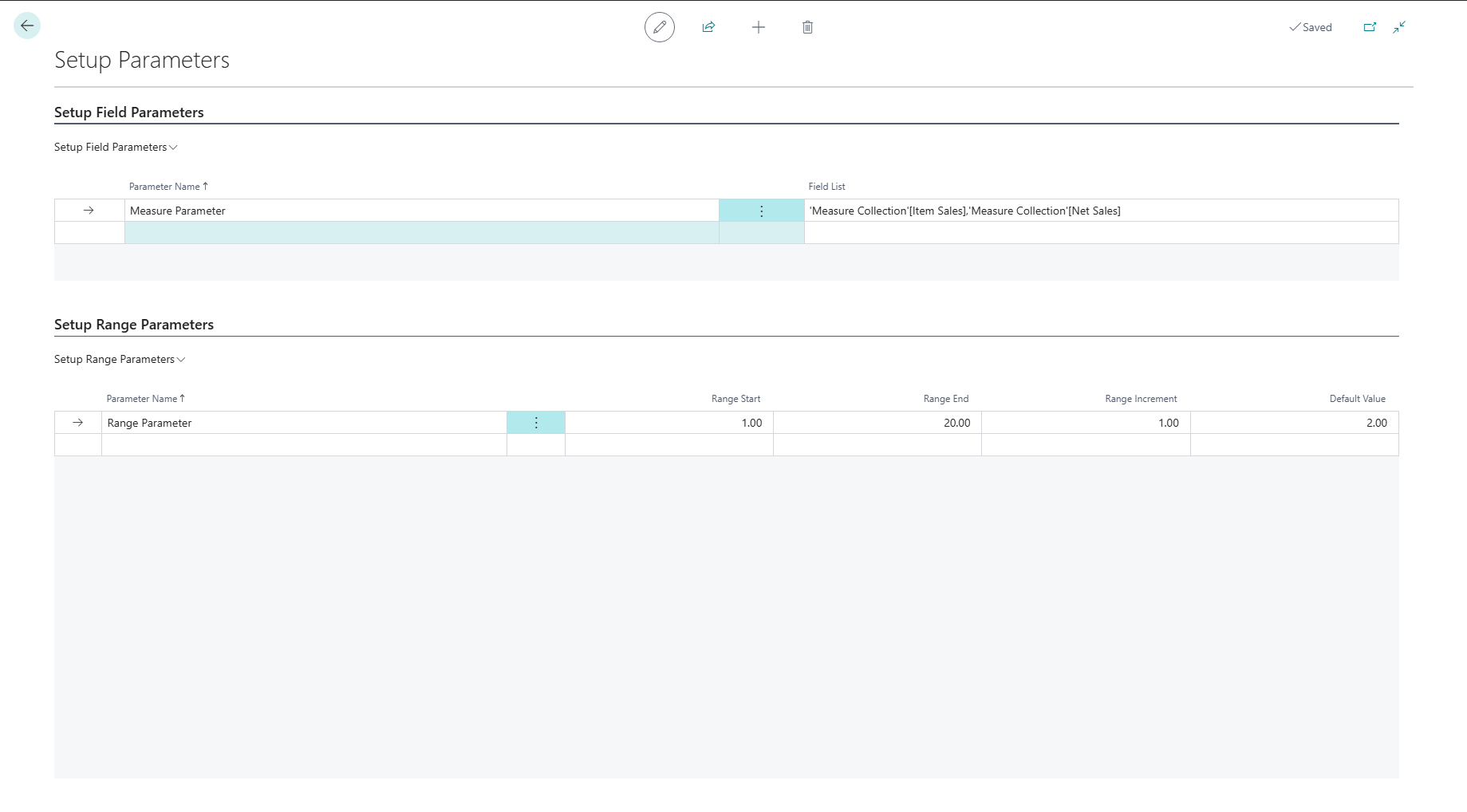
Check the screenshot below for an example of both types of parameters
2.1. Fields Parameter
-
Configure the parameter name as desired
-
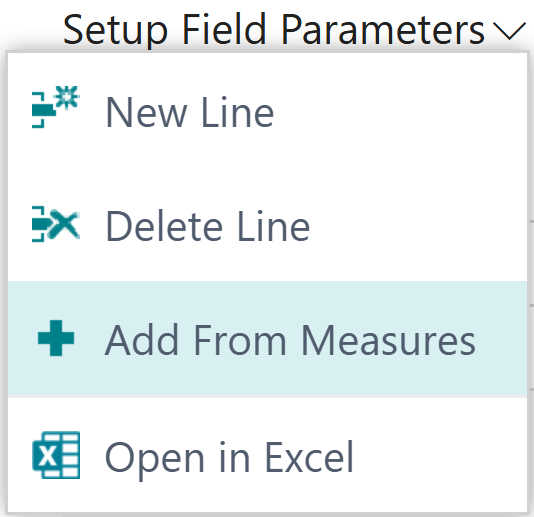
Add comma separated list of fields/measures or use the add from measures button as shown in the screenshot below to select from the predefined measures page.
2.2. Numeric Range
-
Configure the parameter name as desired
-
Configure the range limits (Minimum, Maximum, Default Value, Increment) as desired.
2.3. Next Steps
A change in parameters doesn’t require a redeploy of the configuration, but requires a regenration of the semantic model.
To achieve that, Click on Generate Semantic Model and a new model.bim file will be generated for you.
Add this model.bim file in your reports as mentioned in Basic Configuration for the new parameters to be available.