Customizing the Centrify 360 Data Model
This document explains how to customize the Centrify 360 data model from Microsoft Dynamics 365 Business Central. It is intended for partners and consultants familiar with Business Central tables and basic Power BI star schema concepts.
|
Any customization (fields, events, dimensions, facts, measures) requires a Deploy Configuration, a sync of the data for all companies, and a refresh of the semantic model in Power BI. |
1. Customization Entry Points
All customization is initiated from the Centrify 360 Setup page in Business Central.
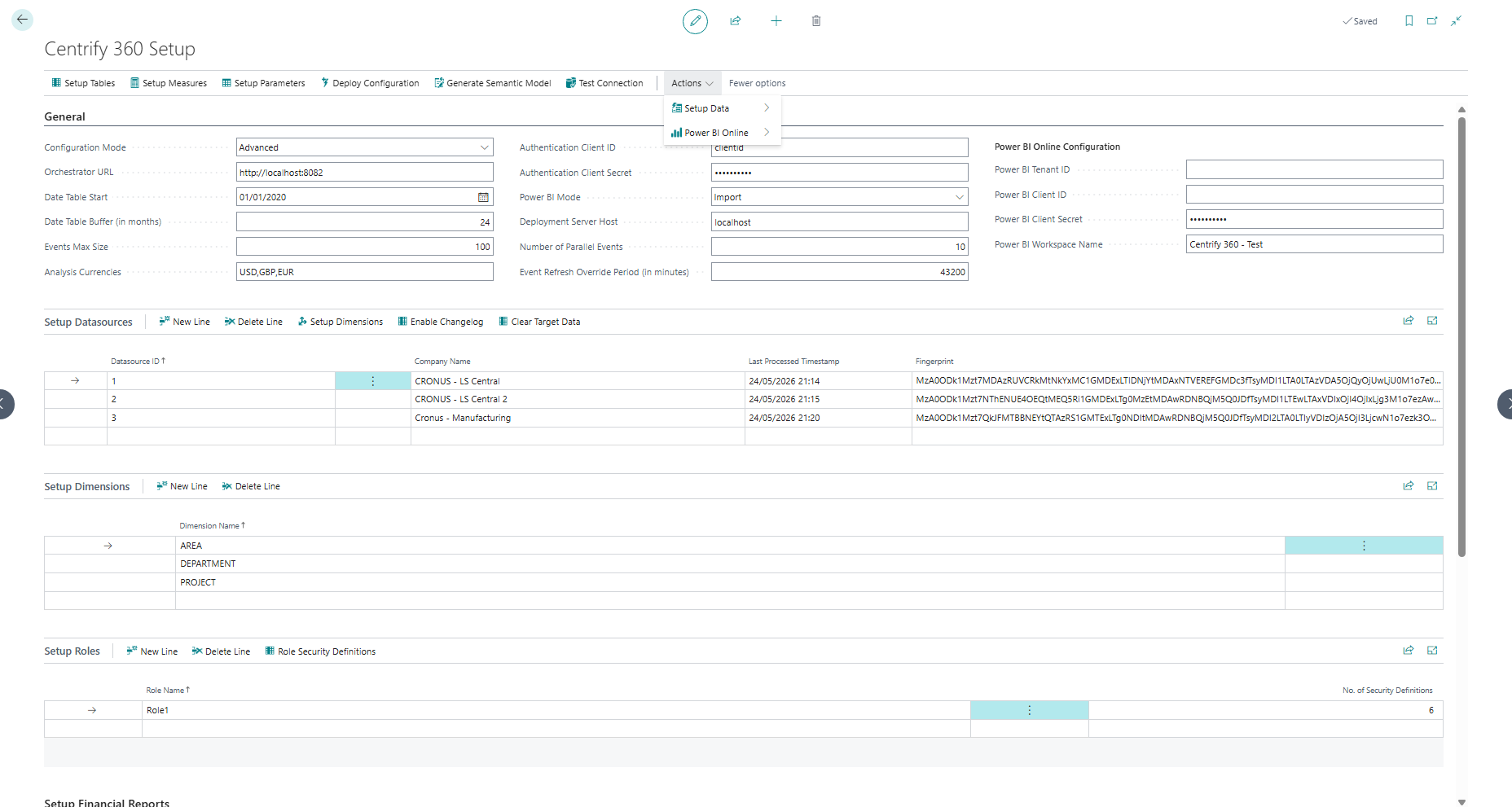
From this page:
-
Setup Tables: opens the list of events (logical tables) included in the model
-
Setup Measures: opens the list of semantic measures (DAX) deployed with the model
Each event in Setup Events has a Configure action that opens the Centrify 360 Setup Event Card:
-
The top part of the card shows Setup Event Tables (mapping between the event and one or more Business Central tables)
-
The bottom part shows Setup Event Fields (the event fields, including lookups and transformations, which are mapped to each event table fields via the Map Fields action)
2. Concepts: Events, Dimensions and Facts
Each row in Setup Tables represents an event, a logical entity sourced from one or more Business Central tables.
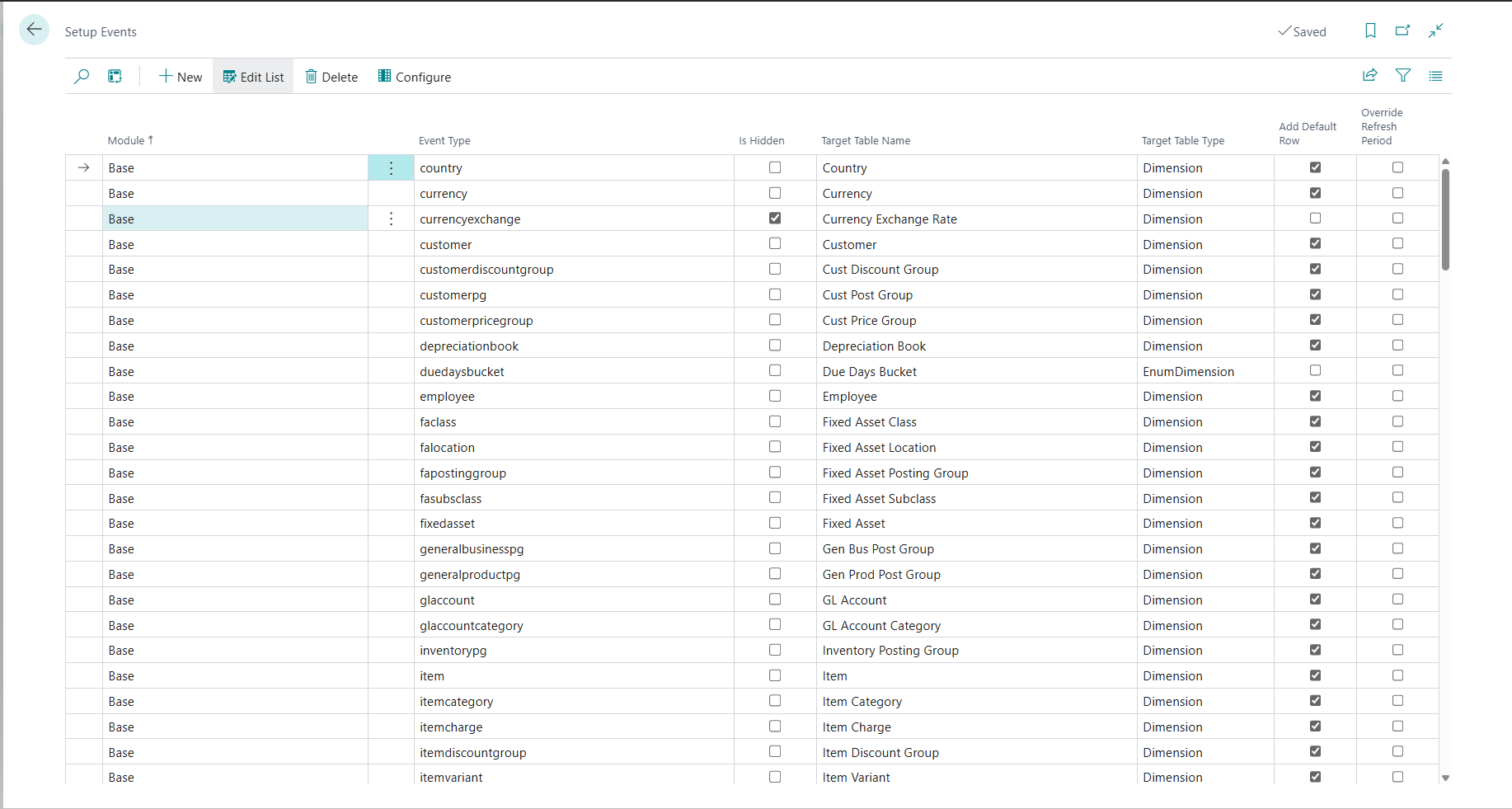
Typical columns:
-
Module: module grouping (set to Custom)
-
Event Type: technical name used internally and in JSON exports (should not have any special character or space in it)
-
Target Table Name: the name of the table as it appears in Power BI
-
Target Table Type: indicates whether the event becomes a
Dimension,Fact, or other type -
Is Hidden: hides the event entirely from the semantic model when enabled
Events with Target Table Type set to Dimension become dimension tables in the star schema.
Events with Target Table Type set to Fact become fact tables.
Why differentiate dimensions and facts
Dimensions represent master data (customers, items, projects). Facts represent transactional or snapshot data (sales, inventory, GL, production orders). Centrify 360 uses this distinction to generate relationships, apply automatic technical columns, and guide partners on where to add attributes versus measures.
3. Automatic Technical Columns
Centrify 360 automatically adds the following technical columns:
-
All Dimension tables receive:
-
Company Name
-
Datasource ID
-
-
All Fact tables receive:
-
Company Key
-
Datasource ID
-
These columns are guaranteed to exist in the generated semantic model and can be safely referenced in measures, security rules, and filters.
Why these columns are added
Multi-company and multi-environment deployments are common.
Company Name and Datasource ID allow you to filter and slice across companies and environments, while Company Key provides a stable numeric key.
This design keeps the star schema efficient and consistent across customers and environments.
4. Setup Event Tables on the Configure card
Open Centrify 360 Setup → Setup Tables → select an event → choose Configure.
The top section of the Centrify 360 Setup Event Card shows Setup Event Tables for the selected event.
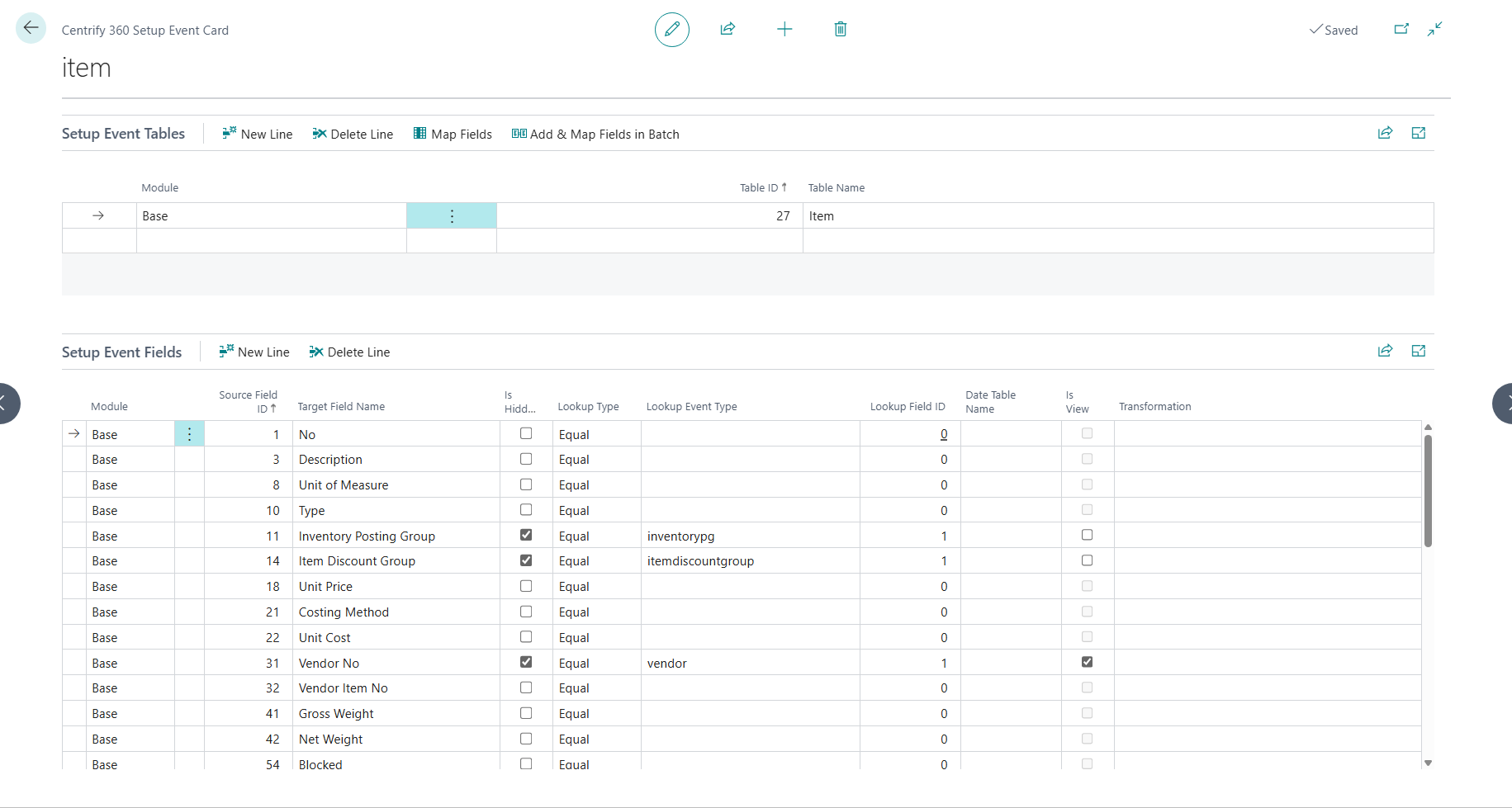
For each line:
-
Module: identifies the module
-
Table ID: the Business Central table ID
-
Table Name: the BC table name shown in the UI
An event may have:
-
A single source table (most dimensions and many facts)
-
Multiple source tables, which Centrify 360 treats as a union (for example, combining several BC tables into one logical event)
Why map multiple tables to one event
In some scenarios, business users expect a single logical table even though the data comes from multiple BC tables. By configuring multiple Setup Event Tables for an event, Centrify 360 unions the data into one star-schema table while keeping configuration in a single place.
5. Setup Event Fields on the Configure card
In the same Centrify 360 Setup Event Card, the bottom section shows Setup Event Fields for the selected event.
Each row defines how a Business Central field is mapped into the event:
-
Module: module of the event field
-
Source Field ID: a field numeric identifier
-
Target Field Name: field name in the event (and semantic model)
-
Is Hidden: hides the field from the semantic model while still allowing it to be used for internal lookups or transformations
-
Lookup Type: behavior of the field (e.g.
Equal, etc.) -
Lookup Event Type: event (typically a dimension) that this field looks up
-
Lookup Field ID: field numeric identifier in the lookup event used for matching
-
Transformation: a transformation on the column using SPEL.
-
Date Table Name, Is View, View Name: advanced options for date mappings or views
The Map Fields define how each BC table’s fields are aligned to a common set of event fields.
Why map fields at the event level
Mapping fields at the event level allows Centrify 360 to normalize multiple source tables into a consistent schema. This also ensures that fact tables and dimension tables share compatible keys and attributes even when BC structures vary by module or localization.
6. Dimension Lookups and Denormalization
When a field is configured as a lookup from a Fact event to a Dimension event:
-
Setting Lookup Type to
Equal -
Setting Lookup Event Type to the dimension’s Event Type
-
Setting Lookup Field ID to the matching key field on the dimension
Centrify 360 performs two actions:
-
Creates a standard relationship between the fact and dimension in the semantic model on the lookup key.
-
Denormalizes the dimension’s own lookups (and their lookups recursively) into the fact, so the final model remains a pure star schema with no snowflake chains.
This means:
-
You configure a direct lookup from the fact to the dimension.
-
Attributes reachable via the dimension’s lookups are copied onto the fact as additional columns.
-
No dimension-to-dimension relationships are created in the semantic model.
Why denormalization is used instead of snowflakes
Snowflaked dimension chains (dimension-to-dimension relationships) are harder to manage and can cause ambiguous relationships in Power BI. By denormalizing dimension attributes into the fact tables during ETL, Centrify 360 keeps the model strictly star-shaped, improves query performance, and simplifies report design while still allowing rich attribute navigation in configuration.
7. Setup Measures
From the Centrify 360 Setup page, choose Setup Measures.
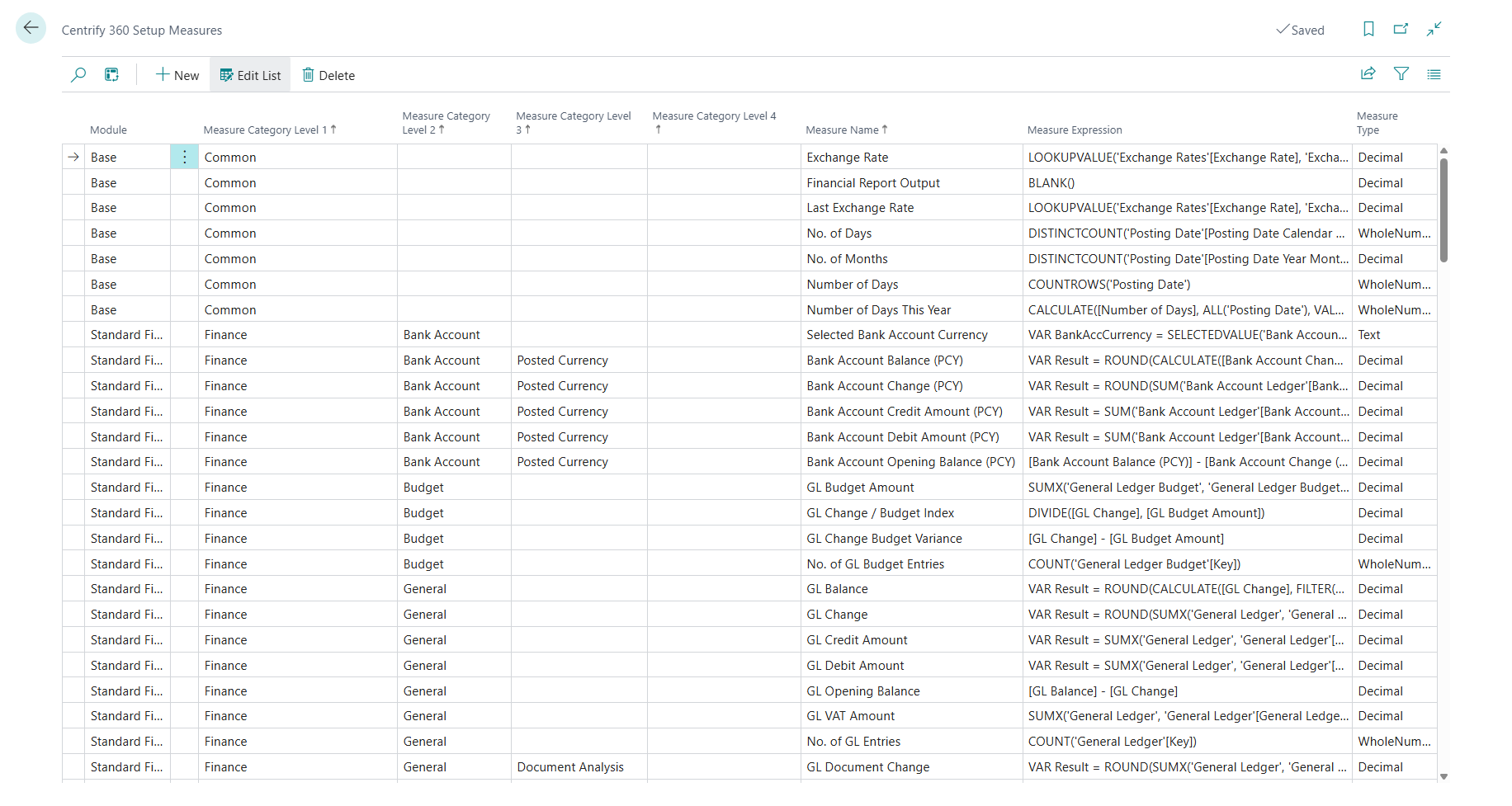
Each row defines a DAX measure:
-
Module: The module of the measure (set to Custom for customizations)
-
Measure Category Level 1,4: category path used to group measures (e.g. Finance → General → GL)
-
Measure Name: name shown in Power BI
-
Measure Expression: the DAX expression
-
Measure Type: output data type (Decimal, Whole Number, Text, etc.)
Measures can reference:
-
Fields from fact and dimension tables defined via Setup Events
-
Automatic columns such as
Company Name,Company Key, andDatasource ID
Why define measures centrally
Defining measures in Business Central ensures that all environments using Centrify 360 share the same KPIs and business logic. Partners can version control measure definitions with BC customizations instead of editing Power BI files per customer.
8. Redeploying Configuration
After any change to:
-
Setup Events
-
Setup Event Tables or Setup Event Fields via the Configure card
-
Setup Measures
you must redeploy the configuration:
-
Open the Centrify 360 Setup page.
-
Choose Deploy Configuration.
-
After deployment completes, sync the data and refresh the semantic model in Power BI.
|
Skipping redeployment means the orchestrator and semantic model will not reflect your latest customizations. |