Example 1: Additional Fields on Item Table
This example shows how to add a new field from the Item table to the existing Item dimension using the Centrify 360 Setup Event Card.
1. Scenario
You want to expose the Shelf No. field from the Item table so that it is available in the Item dimension in Power BI.
2. Step 1: Open the Item event Configure card
-
Open Centrify 360 Setup.
-
Choose Setup Events.
-
Locate the event with Target Table Name =
Item. -
Select this line and choose Configure.
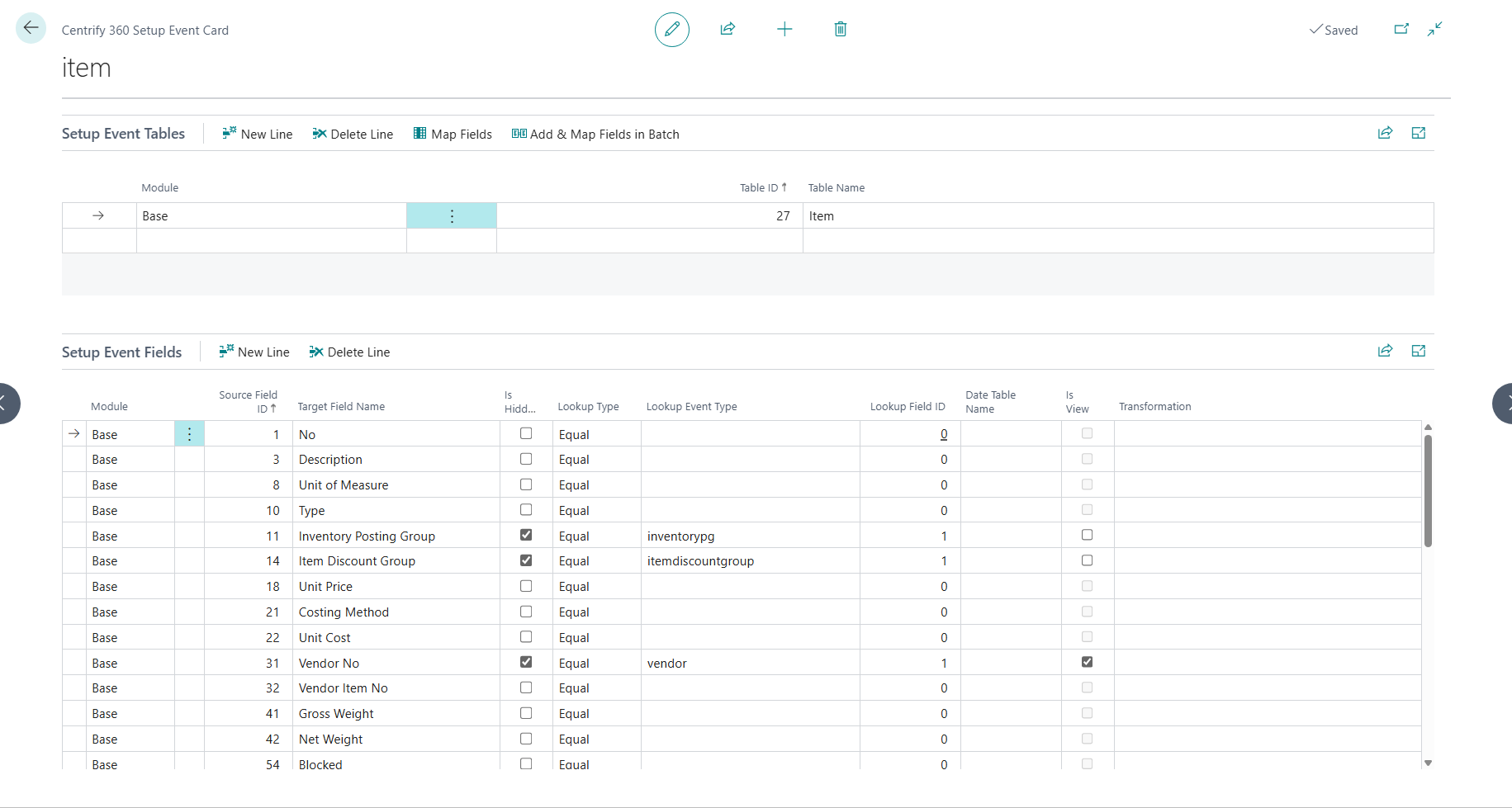
The Centrify 360 Setup Event Card opens with:
-
Setup Event Tables (top) showing the Item table mapping.
-
Setup Event Fields (bottom) showing the existing Item fields.
3. Step 2: Add the Shelf No. field
-
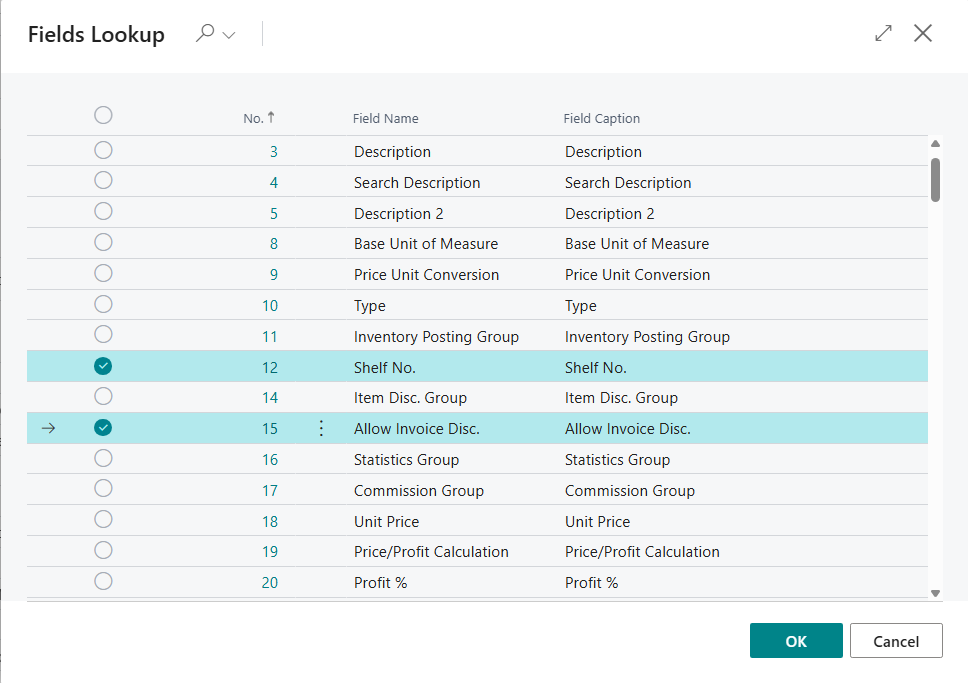
Click on the Add & Map Fields in Batch in Setup Event Tables section
-
Select the fields you would like to add and click on Ok (in this example, we will select Shelf No.)
-
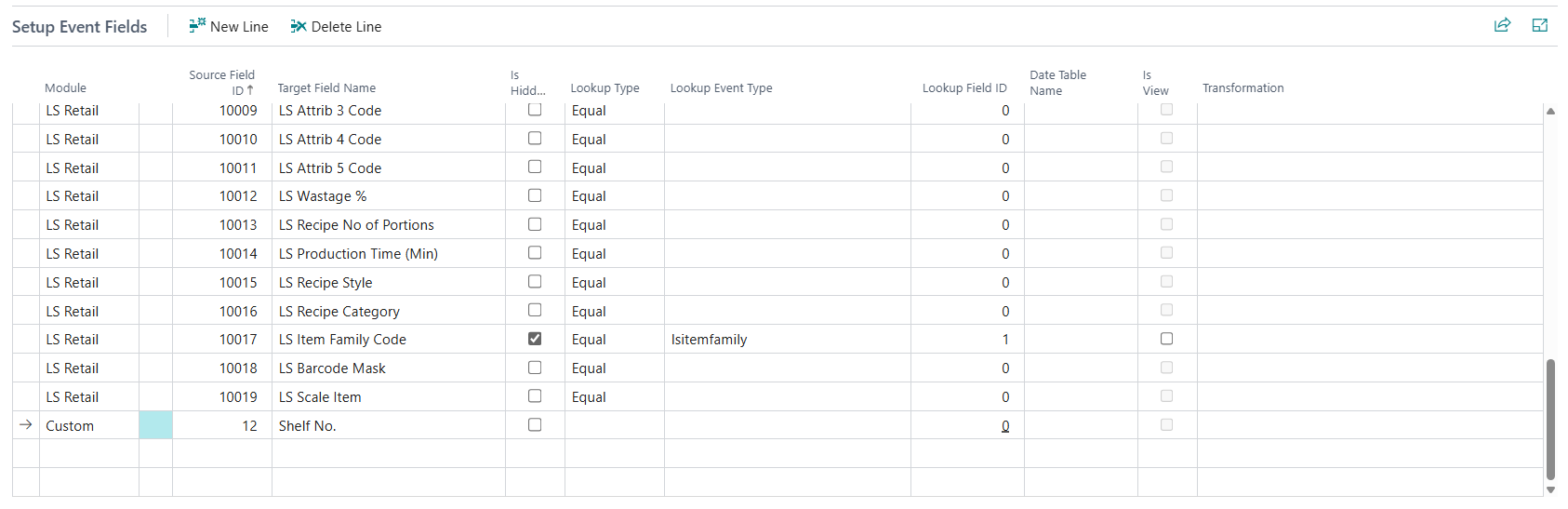
You should now see that the field is added properly
-
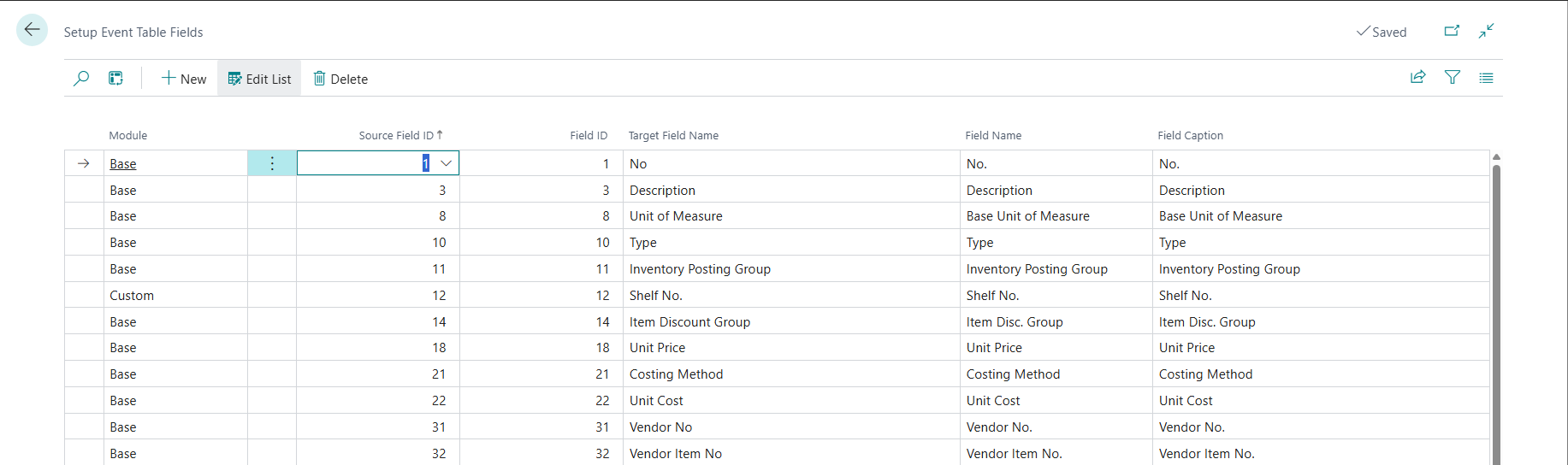
You can click on Map Fields to see that the event field is mapped to the proper table field
4. Step 3: Deploy configuration and verify in Power BI
-
Close the Centrify 360 Setup Event Card.
-
From Centrify 360 Setup, choose Deploy Configuration.
-
Sync your data through the job queue entry
-
After deployment, open your Power BI and refresh the semantic model.
-
Validate that:
-
The Item dimension table still exists.
-
Shelf No.appears as a column in the Item dimension.
-
Why deployment is required
The Configure card changes only update the BC configuration store. Deploying the configuration regenerates the orchestrator metadata and the semantic model definition so the new field becomes available in reporting tools.