Power BI App Registration
1. Overview
Centrify 360 uses an Azure App Registration with service principal authentication whenever it needs to call the Power BI REST APIs.
This prerequisite is:
-
Mandatory when using the Centrify 360 AI assistant.
-
Required when using Integrated Publish & Update.
-
Optional if you only use manual Power BI publishing and do not enable AI.
The values created in this setup are reused in the installation and deployment flows for Centrify 360 components that integrate with Power BI APIs.
2. Step 1: Create an App Registration in Azure Portal
An App Registration provides Centrify 360 with a service principal identity to authenticate against Power BI APIs.
-
Sign in to the Azure Portal.
-
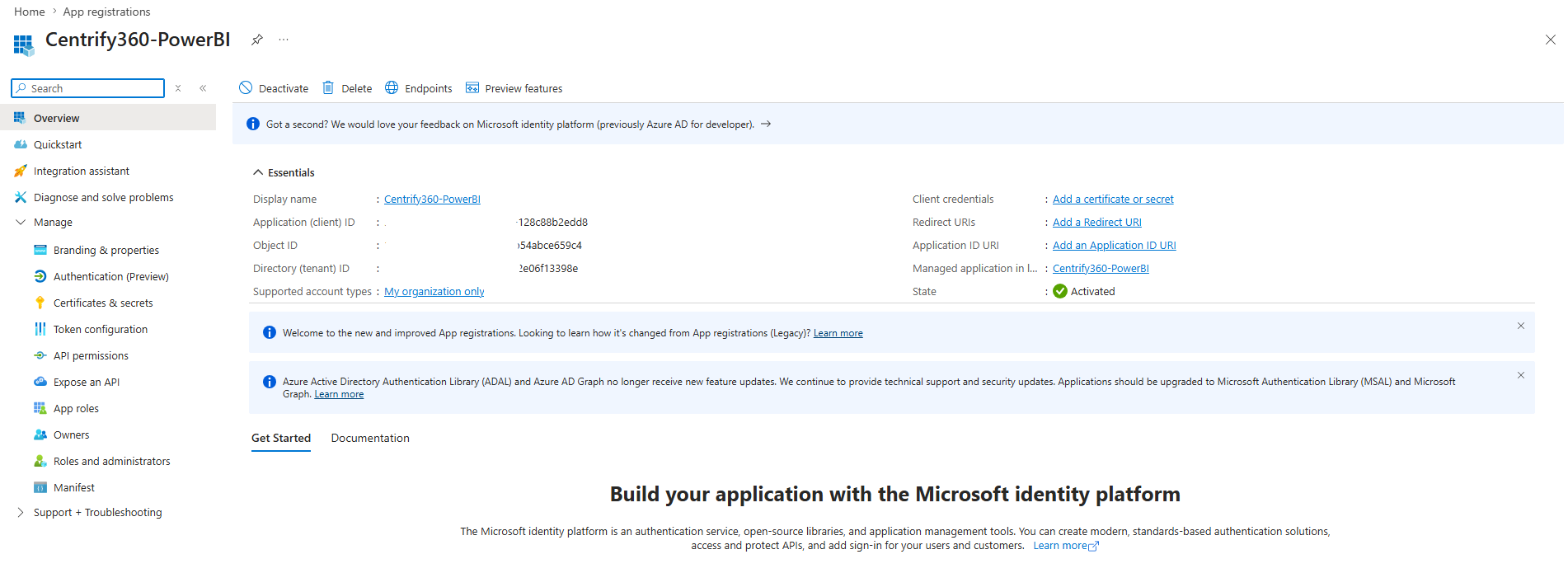
Navigate to Azure Active Directory > App registrations > New registration.
-
Provide a meaningful name (for example,
Centrify360-PowerBI), select the appropriate supported account type, and click Register. -
Once created, note down the following values:
-
Application (Client) ID
-
Directory (Tenant) ID
-
-
Navigate to Certificates & secrets > New client secret.
-
Provide a description and expiry period, then click Add.
-
Copy and securely store the generated Client Secret Value immediately — it will not be shown again.
3. Step 2: Allow Service Principals to Use Fabric APIs
By default, most Power BI tenants already allow API access for service principals. Some older tenants may still have this feature disabled. This setting must be enabled at the tenant admin level.
-
Sign in to the Power BI Admin Portal.
-
Navigate to Tenant settings > Developer settings.
-
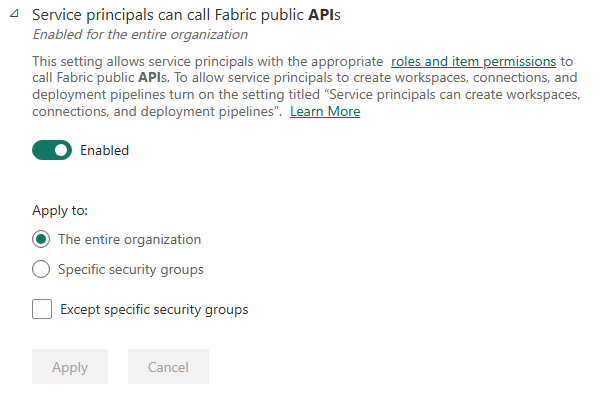
Locate the setting Allow service principals to use Power BI APIs (or Allow service principals to use Fabric APIs depending on your tenant).
-
Enable the setting for the entire organisation.
-
Click Apply.
|
This setting may take a few minutes to propagate after being enabled. If authentication fails immediately after enabling it, wait 5–10 minutes and retry. |
4. Where These Values Are Used
After completing this setup, keep the following values available:
-
Client ID
-
Tenant ID
-
Client Secret
You will use them in one or more of the following places:
-
Supporting deployment flows for AI and automated Power BI publishing
5. Next Step
If you want Centrify 360 to publish reports directly to Power BI Online, continue with Integrated Publish & Update.